
Work Order 2.0 is Here!
Our new work order system has been designed to look and work like our previous one as much as possible. We have added features that will keep you updated on the status of you work order requests, so please make sure to visit the system regularly and check your email for updates.
Access & Home Screen
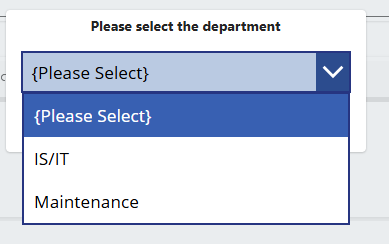
- Open the Work Order link on the SharePoint employee page. You will first choose the department (IT or Maintenance).
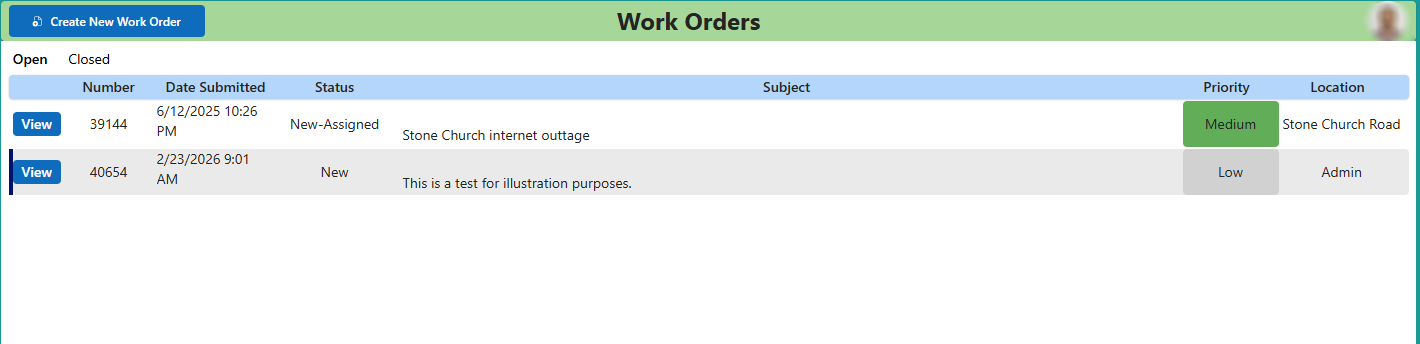
- Your home view shows the active work orders you submitted or where you are the Primary Contact.
- New submissions and updates may take a short time to appear—refresh if needed.
Create a new work order
- Select “Create New Work Order” (top‑left in the above screenshot).
- Pick the Department (IT or Maintenance- shown above).
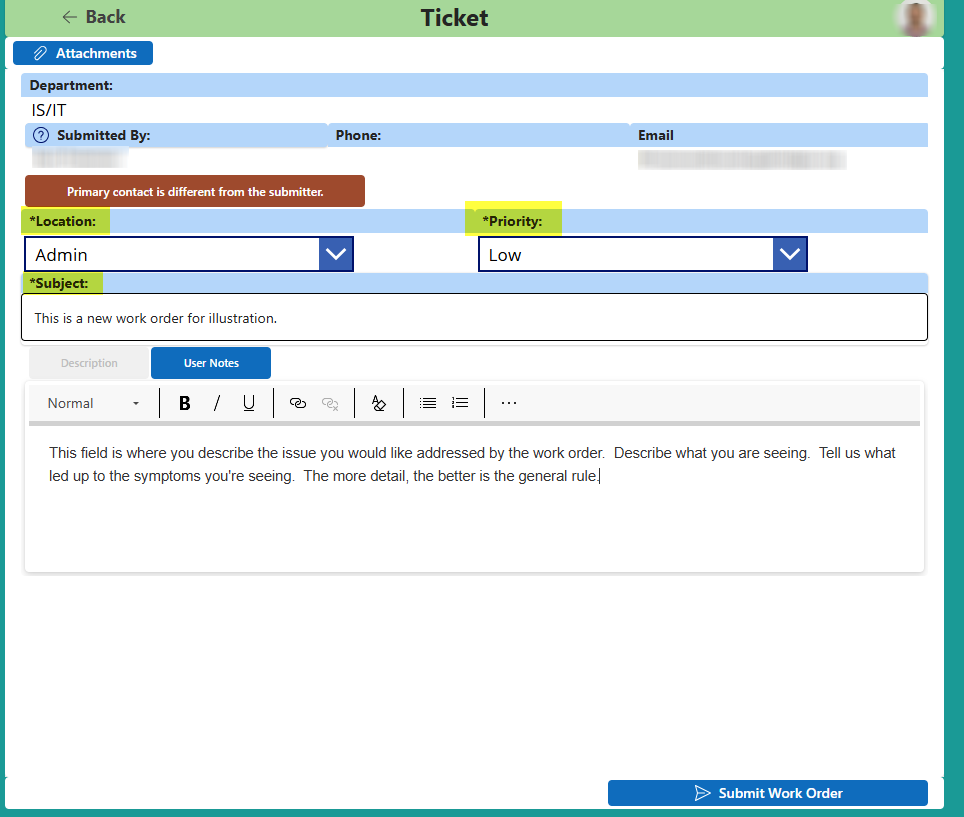
- If submitting for someone else, select “Primary contact is different from the submitter” and choose the person.
- Choose the Location.
- Set Priority: Low (no immediate impact), Medium (time‑sensitive), High (major impact), Critical (operations halted/safety).
- Enter a short Subject (e.g., “Printer not printing”).
- Describe the issue clearly in the Description field.
- Attach screenshots or files using the Attachments button (optional).
- Click “Submit Work Order”.
View, Update, Resolve a Work Order
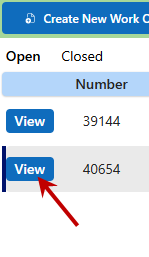
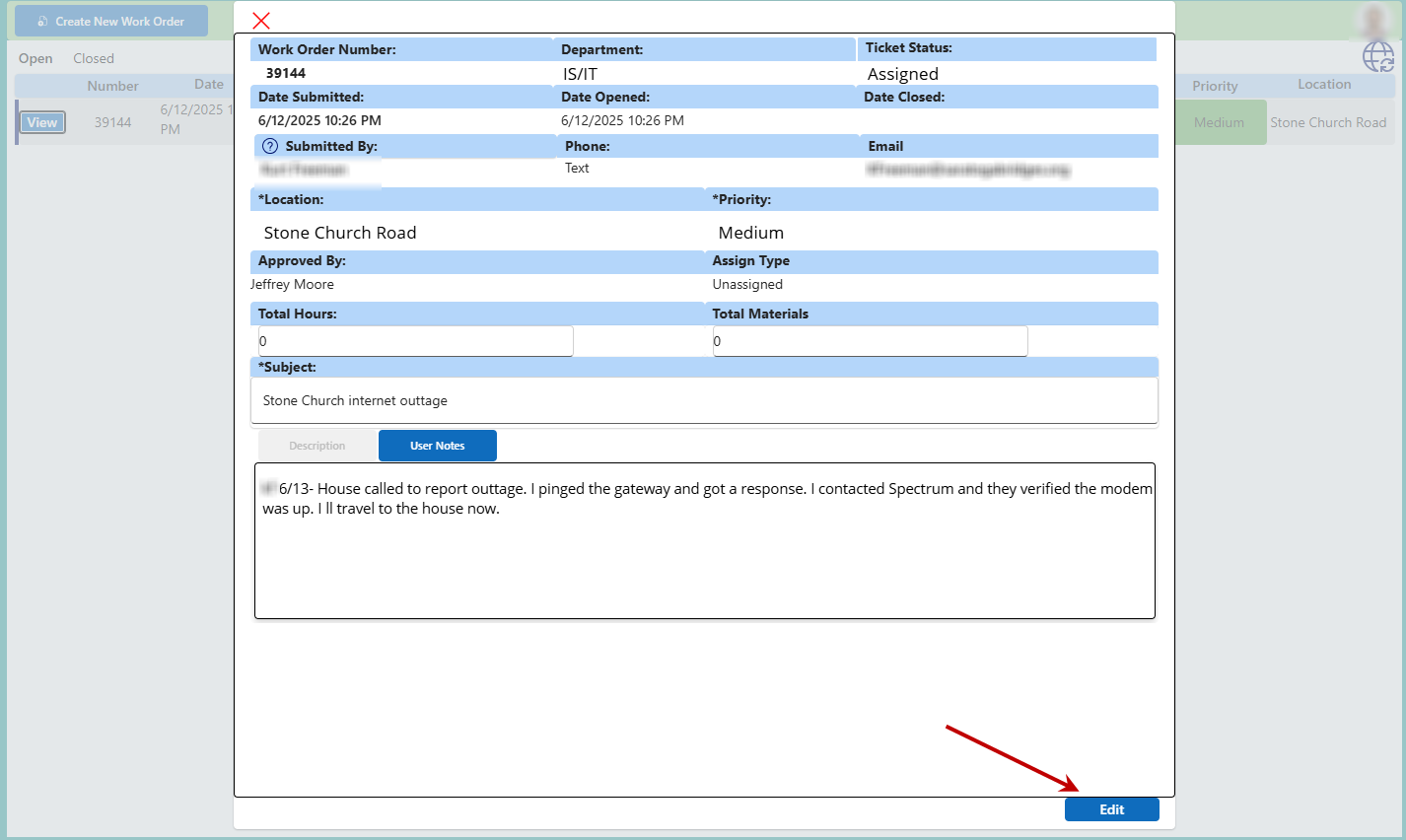
- Click “View” next to an item to see its details; use the X to close.
- Click “Edit” to make changes, then “Update Work Order” to save.
- Add information in User Notes to keep the assigned agent updated.
- If you resolve the issue yourself, set Ticket Status to “Resolved – User” and update.
Status & Notifications
- Watch the Status column on the home view for quick progress checks.
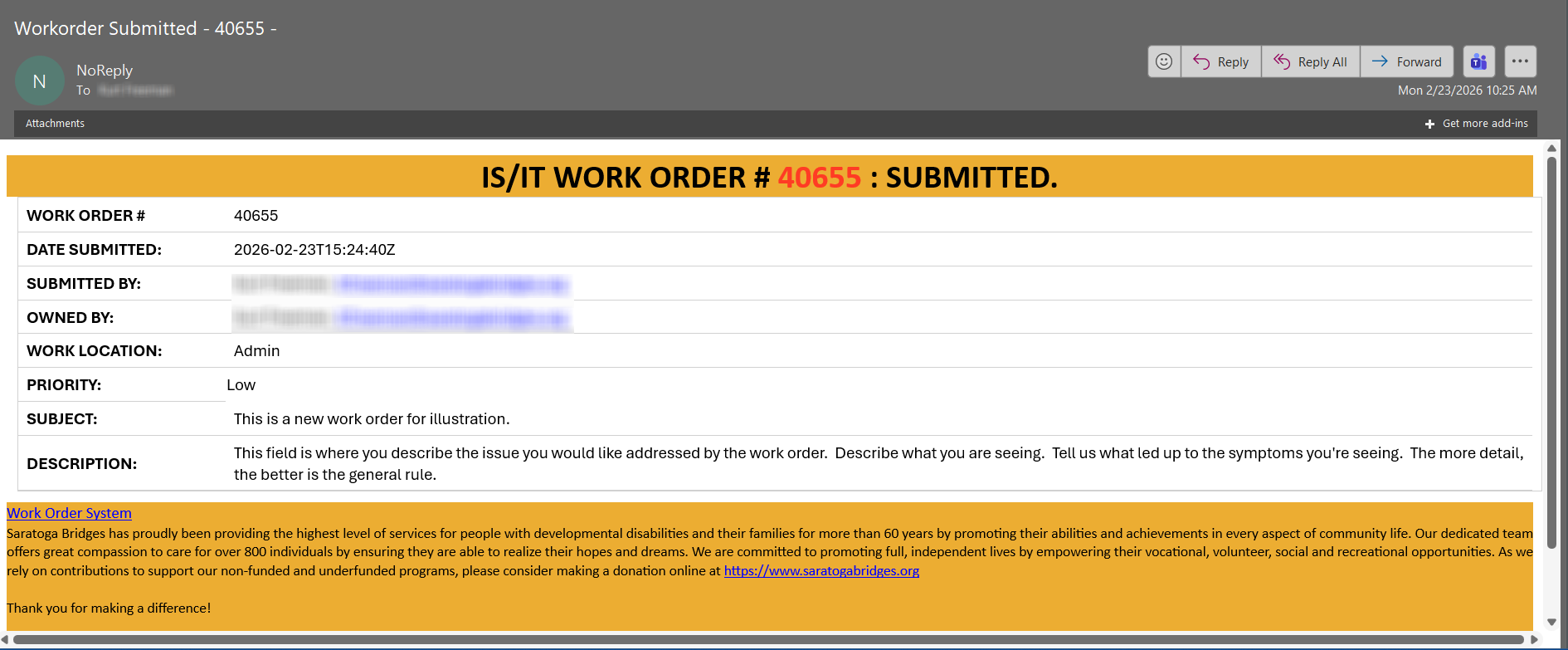
- You will receive an email receipt on submission, plus update and closure emails.
Tips for Faster Resolution
- Include asset tags, device names, room numbers, or error messages in the Description.
- Use clear, action‑oriented Subjects (e.g., “UKG password reset”).
- Add relevant screenshots or log files as attachments.